Set up Minute Minder
Add it to Chrome, connect your calendar, and join your call. The timer appears automatically.
Add to Chrome
Free to install. No credit card required.
Google Meet

Time left
{{ time }}




-
1
Add Minute Minder to Chrome.
Click Add to Chrome on the Chrome Web Store and confirm.
Pin it for quick access: click the puzzle icon in Chrome, find Minute Minder, and click the pin.
-
2
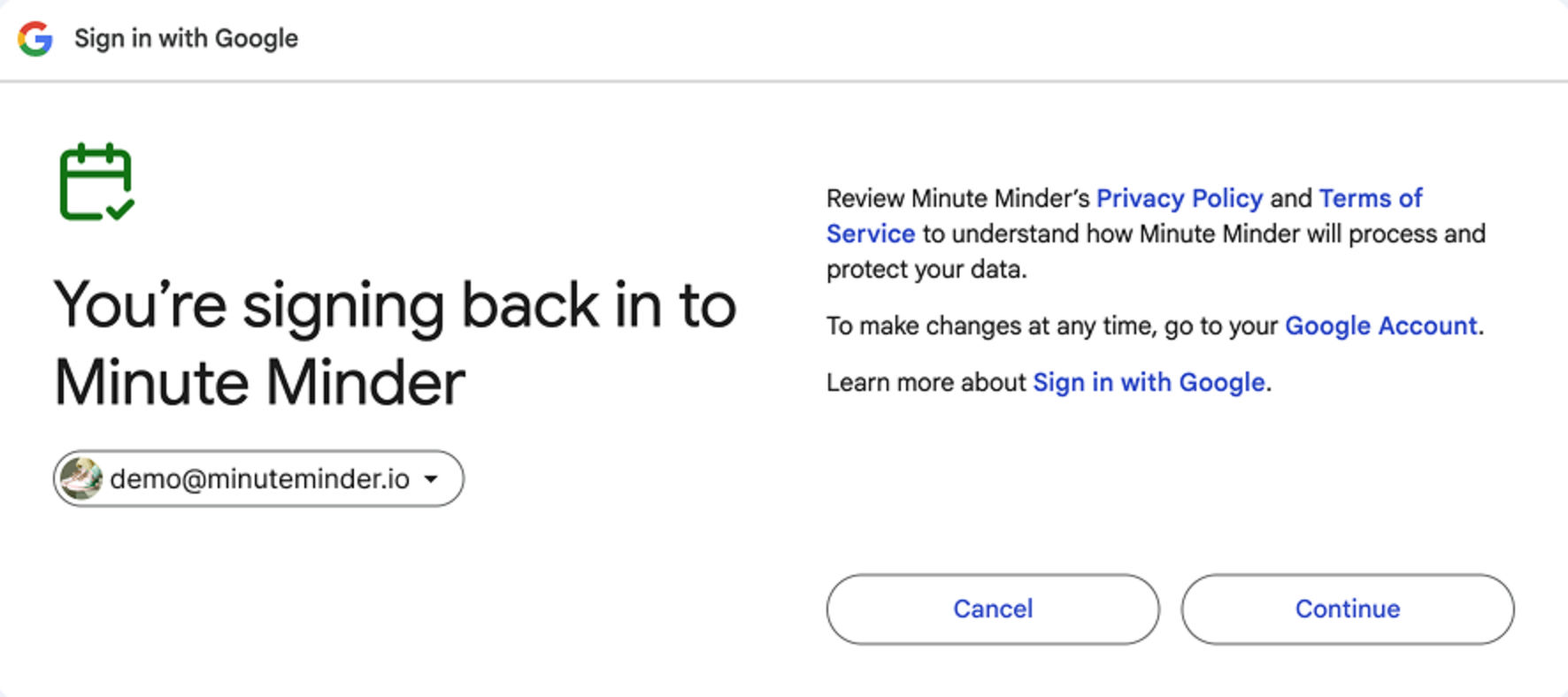
Sign in with Google and connect your calendar.
Choose the Google account that has your meetings.
-
3
Join your next Google Meet call.
Join a meeting that has a Google Meet link in your calendar. The timer appears automatically.
Google MeetTime left 00:30:00

Quick fixes
The Google sign-in didn't open.
- Click the Minute Minder icon in Chrome.
- If you don't see it, click the puzzle icon and pin Minute Minder.
- Try signing in again.
I don't see the timer in Google Meet.
- Refresh the Google Meet tab.
- Check that Minute Minder is installed and pinned.
- Make sure you're inside a Google Meet call.
- Reopen Minute Minder.
Reminders pop up too often.
- In your dashboard, turn off the reminders you don't need or change when they appear.
I signed in. What now?
- Create a Google Calendar event with a Google Meet link.
- Join the call. The timer appears automatically.
Still stuck?
Write to support@minuteminder.io.